Why Your PDF Looks Fine on Screen but Blurry When Printed (Node.js)
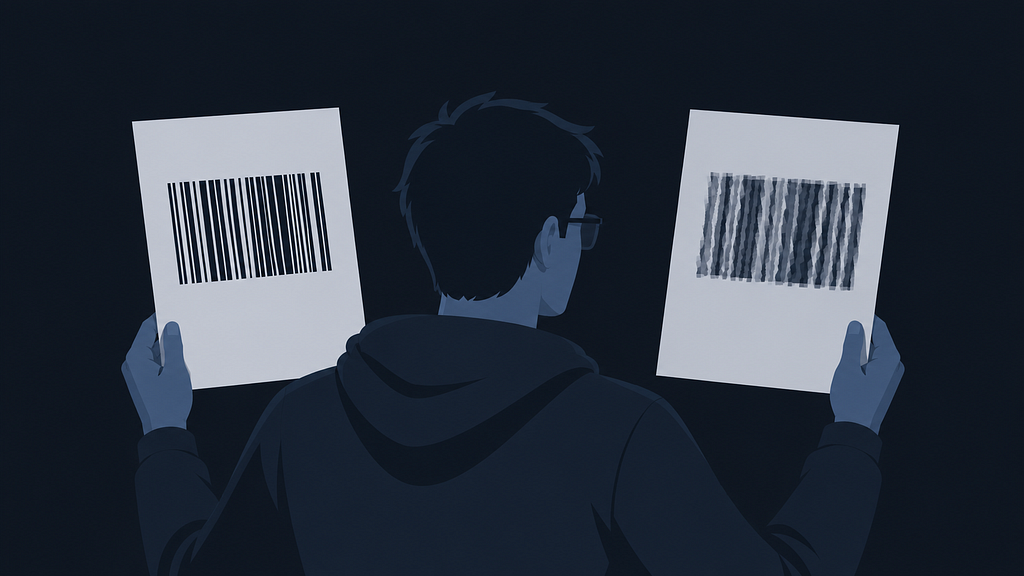
We generate barcode PDFs using Puppeteer. One day, a client reported that barcodes aren’t scanning properly after printing. We checked the PDF - looked fine. Opened it on screen - sharp and clean.
Then we noticed something weird. When they printed from Mac it was fine. When they printed from Windows, it was blurry and jagged.
Same PDF. Same printer. Different result.
Why Mac Was Fine, but Windows Wasn’t
Turns out Mac’s rendering engine (Quartz) is resolution-independent by design - it rasterizes content at whatever resolution the output device needs. So when printing, it adapts the image to the printer’s DPI, and the result looks acceptable even if the original was low resolution.
Windows print more literally. What you embedded in the PDF is closer to what comes out. So a 96 DPI image on a 300 DPI printer gets physically stretched, and every pixel becomes a visible block of dots.
So the real question became - why was our PDF low resolution in the first place?
What Puppeteer Actually Does
Puppeteer opens a headless Chrome, loads your HTML, and runs page.pdf(). Chrome renders everything at 96 DPI by default - that's just standard screen resolution.
Any image generated at this stage gets embedded in the PDF at 96 DPI. On screen, this looks fine. But send it to a 300 DPI printer, and every pixel gets stretched. That’s where the jagged edges come from.
The Barcode Problem Specifically
We were using JsBarcode to generate barcodes as SVG inside an <img> tag:
<img
  src="data:image/svg+xml;charset=UTF-8,<svg
      viewBox='0 0 200 40'
      jsbarcode-format='code128'
      jsbarcode-value='ABC123'
  />"
/>
The problem - when Chrome sees an SVG inside an <img> tag it rasterises it to match the CSS container size. A 40mm container on a 96 DPI page becomes around 150 pixels. That's the image that goes into the PDF.
JsBarcode gives you no control over this. The browser decides the pixel size and it decides based on screen resolution, not print resolution.
How We Fixed It
Two changes.
First - tell Chrome to render at 300 DPI:
await page.setViewport({
    width: 396,
    height: 276,
    deviceScaleFactor: 3.125  // 96 × 3.125 = 300 DPI
});
deviceScaleFactor simulates a high-DPI screen. 3.125 because 300 ÷ 96 = 3.125 => which is exactly the standard resolution for label and thermal printers (at least in our case). Everything Chrome renders now gets baked into the PDF at 300 DPI.
Second - stop relying on JsBarcode for print:
Even with deviceScaleFactor, SVG barcodes can still have soft edges because bar boundaries don't always land exactly on pixel boundaries. We switched to bwip-js which generates barcodes server-side as a PNG with full control over resolution:
const bwipjs = require('bwip-js');
const generateBarcodeDataUrl = async (value) => {
    const png = await bwipjs.toBuffer({
        bcid: 'code128',
        text: String(value),
        scale: 6,        // 6 pixels per barcode module
        height: 10,
        includetext: false,
    });
    return `data:image/png;base64,${png.toString('base64')}`;
};
scale: 6 means each bar in the barcode is 6 pixels wide. A typical Code-128 barcode has around 60 modules, so that's 360 pixels wide - way more than what Chrome was producing at 96 DPI. Every bar lands exactly on a pixel boundary, no anti-aliasing, no soft edges.
Also add image-rendering: pixelated on the img tag so the browser doesn't blur it during layout:
<img
    style="height: 100%; width: 100%; object-fit: fill; image-rendering: pixelated;"
    src="${barcodeDataUrl}"
/>
Why Both Changes Together
deviceScaleFactor alone makes things better, but doesn't fully fix the barcode problem - bar edges can still be slightly soft from sub-pixel rendering.
bwip-js alone gives you a high resolution PNG, but if the rest of the page is still at 96 DPI, text and other elements can still print blurry.
Together, they cover everything. Page renders at 300 DPI, barcode is generated at 300 DPI, nothing gets stretched, nothing gets blurred.
The Short Version
- Puppeteer renders at 96 DPI by default
- Mac hides this problem; Windows doesn’t
- Set deviceScaleFactor: 3.125 to render at 300 DPI
- Use bwip-js instead of JsBarcode for print-quality barcodes
- Both together, the problem is gone